By Robert Boyd • Difficulty: Moderate
This repair guide was authored by the iFixit staff and hasn’t been endorsed by Google. Learn more about our repair guides here.
Follow this guide to remove and replace the battery on a Google Pixel 5.
For your safety, discharge your battery below 25% before disassembling your phone. This reduces the risk of a dangerous thermal event if the battery is accidentally damaged during the repair. If your battery is swollen, take appropriate precautions.
The rear cameras were removed in the photos, but it is not a necessary step to take when removing the battery.

- Heat an iOpener and apply it to the bottom edge of the screen for one minute.


- Screen seam: This seam separates the screen from the rest of the phone. Do not pry at this seam.
- Bezel seam: This is where the plastic bezel designed to protect the screen meets the frame. It's held in place by plastic clips. This is where you should pry.


- Pull the blue handle towards the hinge to disengage opening mode.
- Position the suction cups near the bottom edge of the screen—one on the front, and one on the back.
- Push down on the cups to apply suction to the desired area.


- Push the blue handle away from the hinge to engage opening mode.
- Turn the handle clockwise until you see the cups start to stretch.
- Wait one minute to give the adhesive a chance to release and present an opening gap.
- Insert an opening pick under the screen and its bezel frame when the Anti-Clamp creates a large enough gap.
- Skip the next step.


- Apply a suction cup to the screen, as close to the heated edge as possible.
- Pull up on the suction cup with strong, steady force to create a gap.
- Insert the opening pick into the gap.


- Slide the opening pick back and forth along the bottom of the screen to slice the adhesive.
- Leave the pick inserted in the bottom right corner to prevent the adhesive from re-sealing.

- Apply a heated iOpener to the left edge of the screen for one minute.


- Insert another opening pick into the bottom left corner of the screen.
- Slide the opening pick around the left corner.
- Continue to slide the pick up towards the front camera to slice the adhesive on the left edge of the screen.
- Leave the pick inserted to prevent the adhesive from re-sealing.


- Insert another opening pick into the top left corner of the screen.
- Slide the pick around the front camera and across the top edge of the phone.
- Slide the pick to the top right corner of the phone and leave the pick inserted.


- Insert an opening pick into the bottom right corner of the screen.
- Slide the pick up to the top right corner to slice the last edge of adhesive.


- Use the opening pick from the top left corner to lift up the left edge of the screen a few millimeters. This will keep the clips from snapping back down into the case.
- Lift up on the right side of the screen and open up the phone like a book.


- Use tweezers to grip the screen connector cover securing the screen flex cable.
- Push the clip in towards the connector to unlatch it.

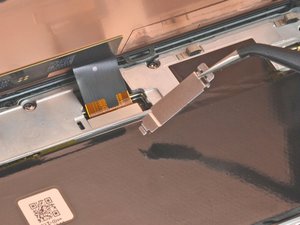
- Remove the screen connector cover.


- Use the tip of the spudger to pry up and disconnect the screen flex cable.

- When handling your screen, grip it by its edges.
- When placing the screen on your work area, make sure nothing is touching the bottom of the screen. Consider placing it on a soft, lint-free cloth.


- Remove the screen.


- Use tweezers to lift up the graphite tape until you are able to grip it with your fingers.
- Peel off the graphite tape.


- Use tweezers to peel off the graphite pad covering the charging plate cover.

- Use a T3 Torx driver to remove the two 4.6 mm-long screws securing the charging plate cover to the midframe.


- Use tweezers to remove the charging plate cover.

- Use a T3 Torx driver to remove the eight 4.6 mm-long screws securing the midframe.


- Use tweezers to lift up the right side of the midframe.
- Remove the midframe.


- Use the pointed end of the spudger to pry the battery connector straight up and disconnect it from the motherboard.


- Use blunt nose tweezers to grip the black adhesive pull tab located on the top right edge of the battery. Lift the pull tab with the tweezers until you are able to grip it with your fingers.
- Pull on the pull tab with a slow, steady force at a shallow angle to prevent the pull tab from snapping in the middle.
- If the pull tab breaks prematurely, use tweezers to retrieve the remaining length of adhesive and continue pulling.


- Use the same process to remove the pull tab located at the bottom left edge of the battery.


- If any of the adhesive strips broke off underneath the battery and could not be retrieved, apply a few drops of high concentration (over 90%) isopropyl alcohol into the opening of the affected tab.


- Tilt the phone so that the alcohol flows towards the remaining adhesive.
- Wait one minute for the adhesive to soften, then proceed to the next step.


- Insert an opening pick into the gap long the left side of the battery.
- Use the opening pick to slice the remaining adhesive at the top and bottom of the battery.
- If you cannot pry the battery up, add a few more drops of isopropyl alcohol to the adhesive. A plastic card can also be helpful during this process.


- Remove your old battery.
For optimal performance, calibrate your newly installed battery after completing this guide.
Compare your new replacement part to the original part—you may need to transfer remaining components or remove adhesive backings from the new part before installing.
To reassemble your device, follow the above steps in reverse order.
Take your e-waste to an R2 or e-Stewards certified recycler.
Repair didn’t go as planned? Try some basic troubleshooting, or ask our Answers community for help.